Coming Soon: MonsterTrade is in pre-release and not live in the App Store or Google Play yet.

Tutorial

How to start trading in 6 guided steps

New to MonsterTrade? No worries. Follow these steps from the home screen to live matching, using real screenshots so you can tap along with confidence.

Step 1: Start at MonsterTrade Home

Start on the home screen. If this is your first session, tap Setup My Monsters for Trading to build your profile first.
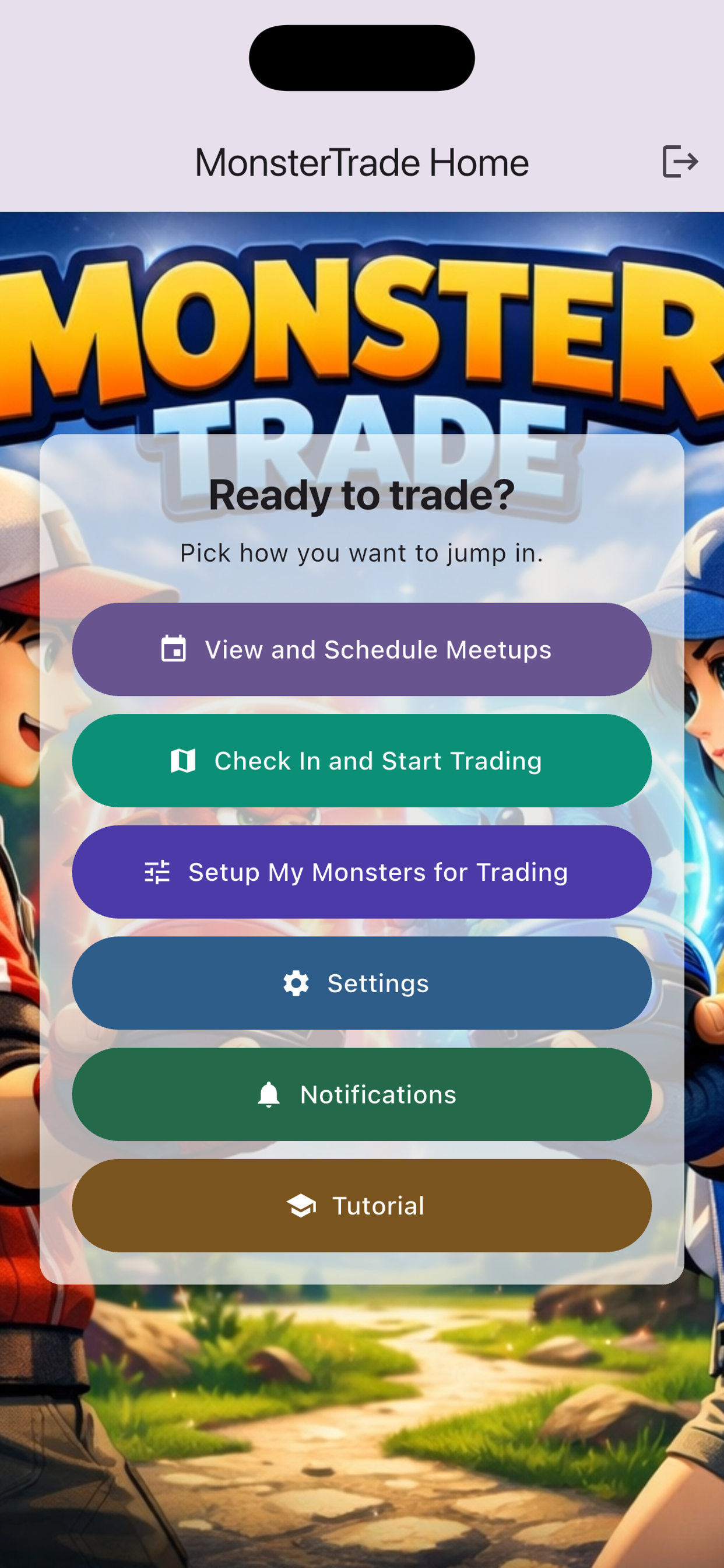
MonsterTrade home screen with quick actions such as View and Schedule Meetups, Check In and Start Trading, and Setup My Monsters for Trading.
This is your launchpad for everything in MonsterTrade.

Step 2: Add Seeking and Offering Slots

Add what you want and what you can offer. Filling both sides gives the matcher enough detail to find better trade partners.
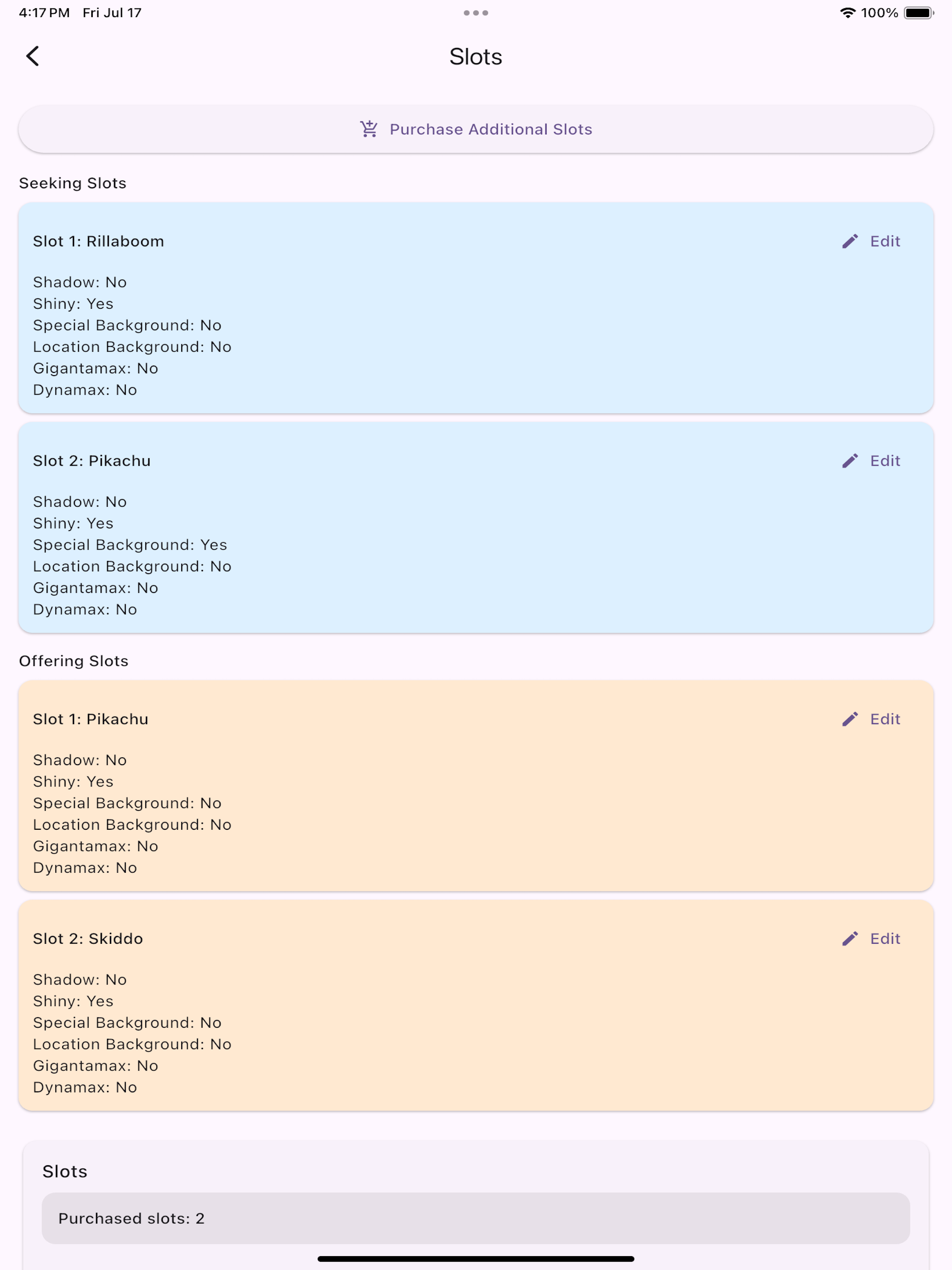
Slots screen showing Seeking Slots and Offering Slots with editable entries.
Quick tip: keep at least two active slots in each section for stronger results.

Step 3: Fine-Tune a Slot

Tap Edit and set details like Shiny, Shadow, and backgrounds so your listings match what you really want.
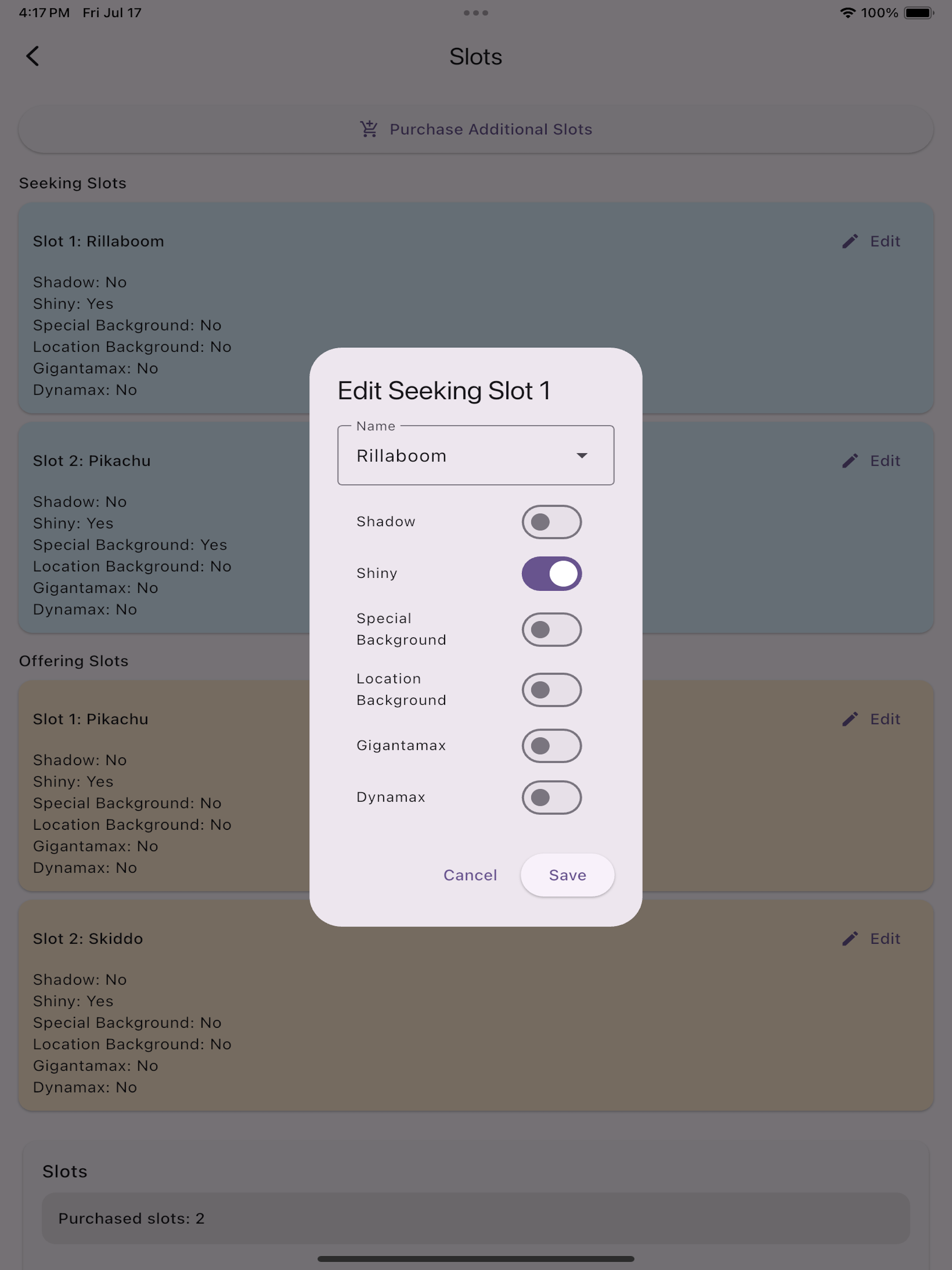
Edit slot modal with toggles for Shiny, Shadow, Special Background, Location Background, Gigantamax, and Dynamax.
Small detail changes here can make a big difference in match quality.

Step 4: Explore Meetups on the Map

Open View and Schedule Meetups to see active events and quickly spot where players are gathering.
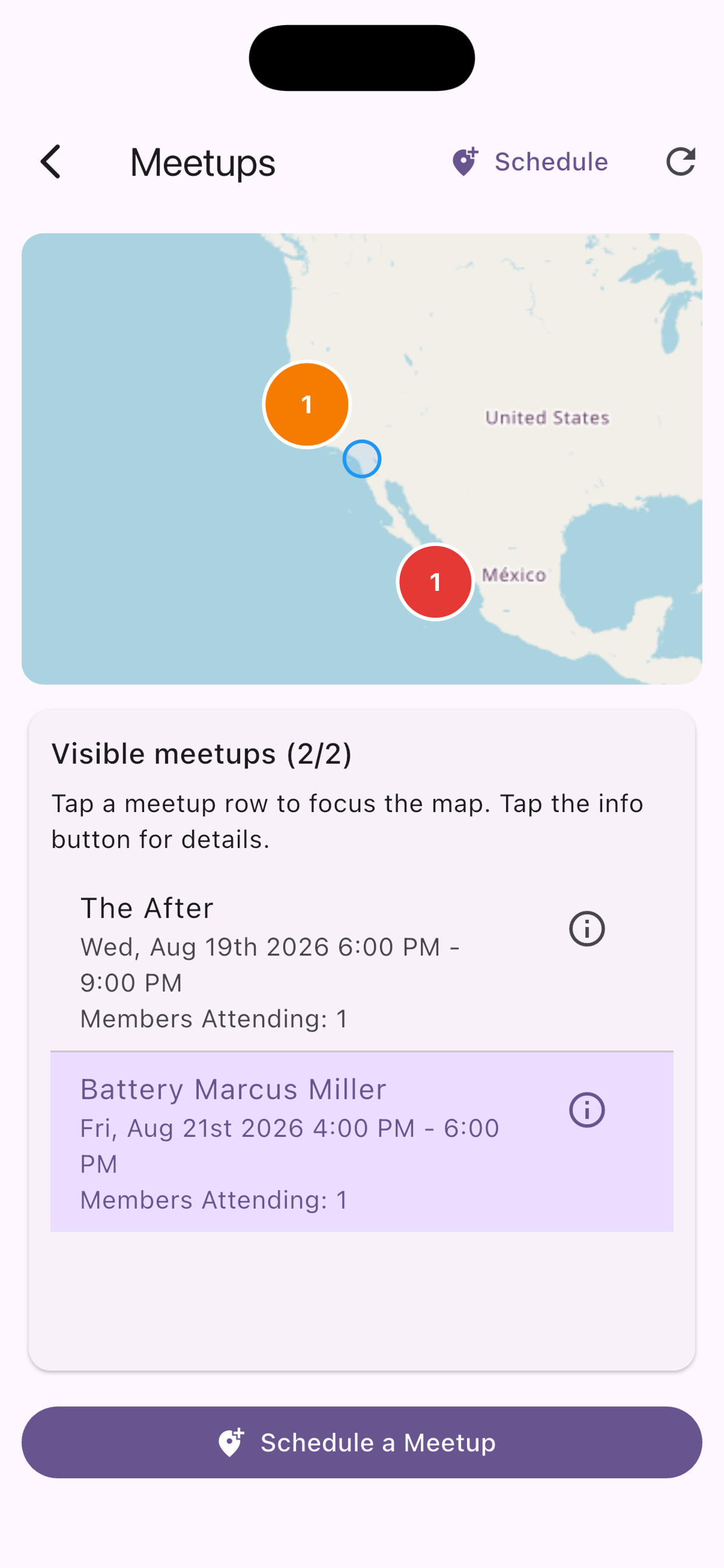
Meetups screen with map markers and a visible meetups list below.
Tap a meetup row to focus the map and compare your options.

Step 5: Focus a Meetup Area

Zoom in on the meetup you care about so you can confirm location and activity before checking in.
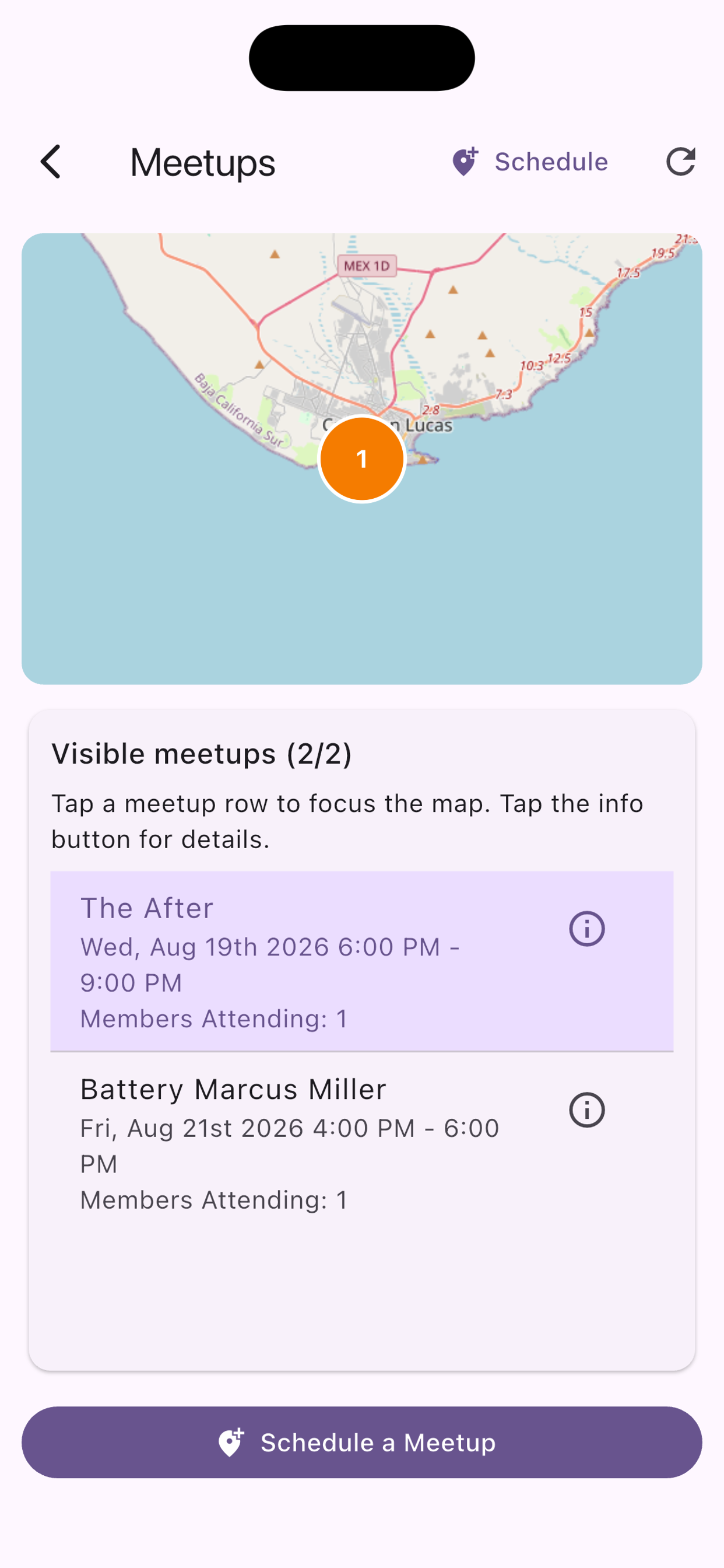
Meetups map zoomed to a specific event location with highlighted meetup card.
A quick zoom check helps you avoid checking in to the wrong area.

Step 6: Check In and Match Nearby Traders

When you arrive at the event, tap Check In and Start Trading to unlock nearby matches and live trade scores.
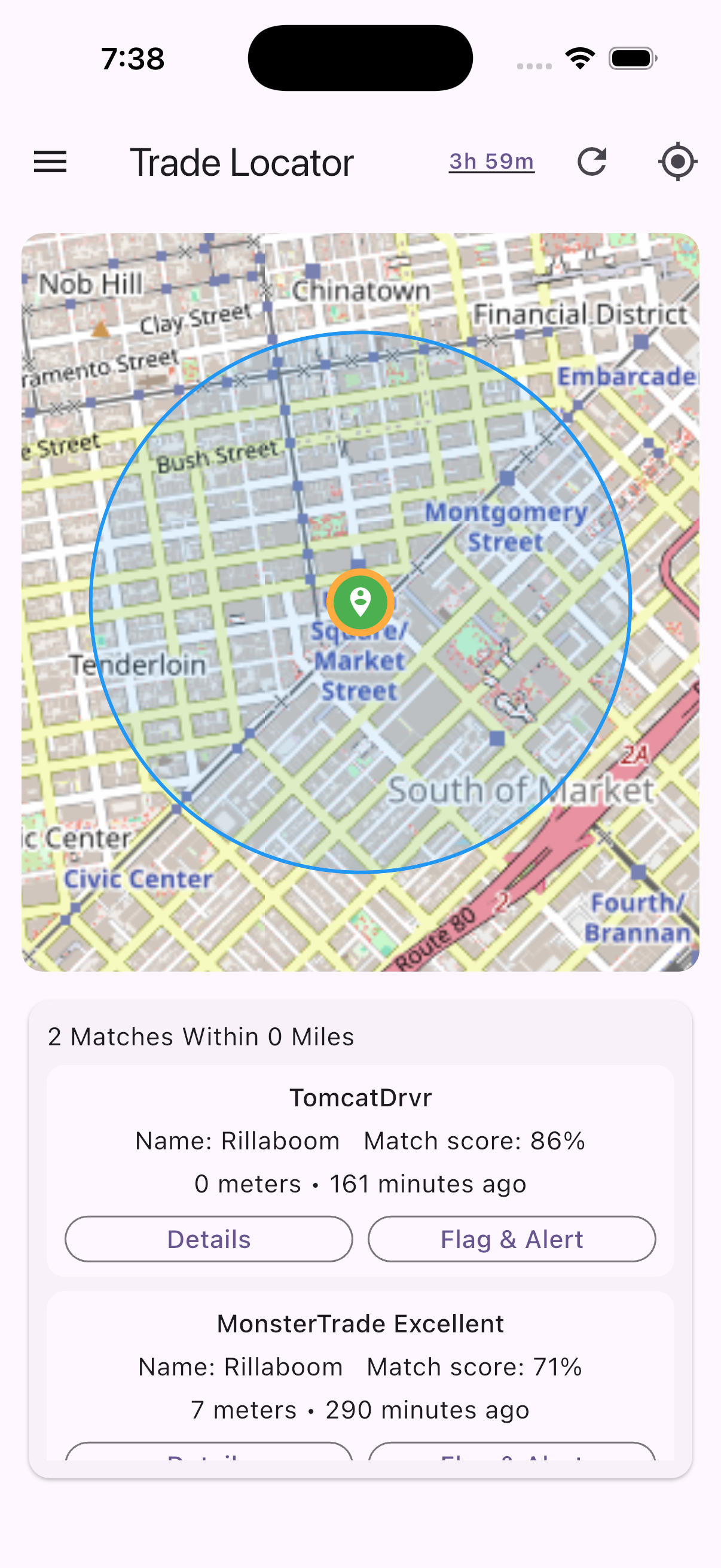
Trade Locator screen showing nearby matches, distance, and match score cards.
Start with the highest score first, then tap Details to confirm a great fit.